
Install and connect
Install from the Chrome Web Store, open the extension and choose Connect. Sign in to UltraHumanizer and authorize the connection.
UltraHumanizer for Chrome
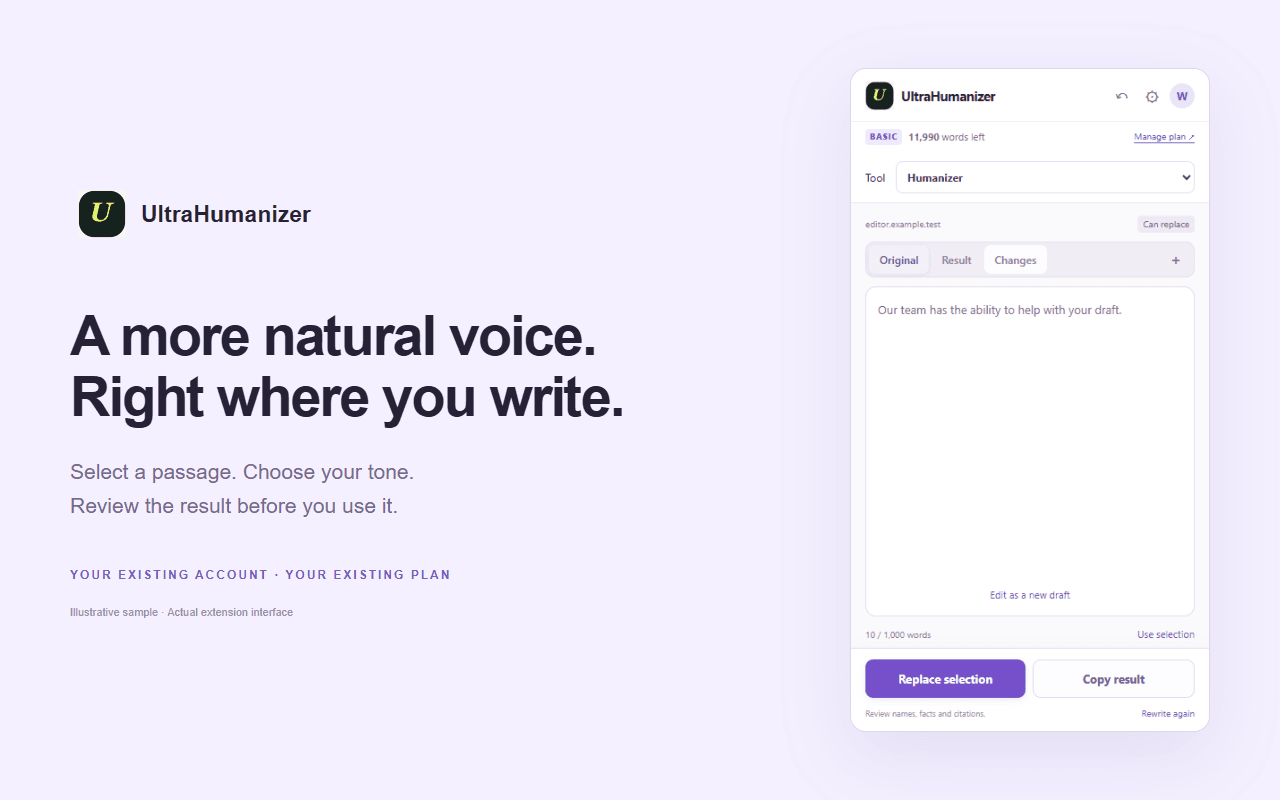
Select a passage on a page and open it in the side panel. Humanize the wording, review the changes, and copy the result back when it is ready.
Uses your existing UltraHumanizer account and plan. Sign-in and plan limits apply to online tools.
Install from the Chrome Web Store, open the extension and choose Connect. Sign in to UltraHumanizer and authorize the connection.
Select text and use the UltraHumanizer right-click action. You can also paste into the side panel. Alt + Shift + H opens the shortcut action when the browser allows it.
Choose a tone, run Humanize, and read the result against the source. Check names, dates and commitments before adopting a change.
Copy the revised passage, or replace a supported editable selection. Keep the source if you need another editing pass.
Alongside Humanizer, the panel includes text cleanup, comparison, readability, grammar and summarizing tools, plus the other tools in your account. Each tool shows its applicable usage limits.
Online rewriting is different from local text cleanup or comparison. Check the tool’s processing notice before submitting sensitive material.
Explore the writing tools →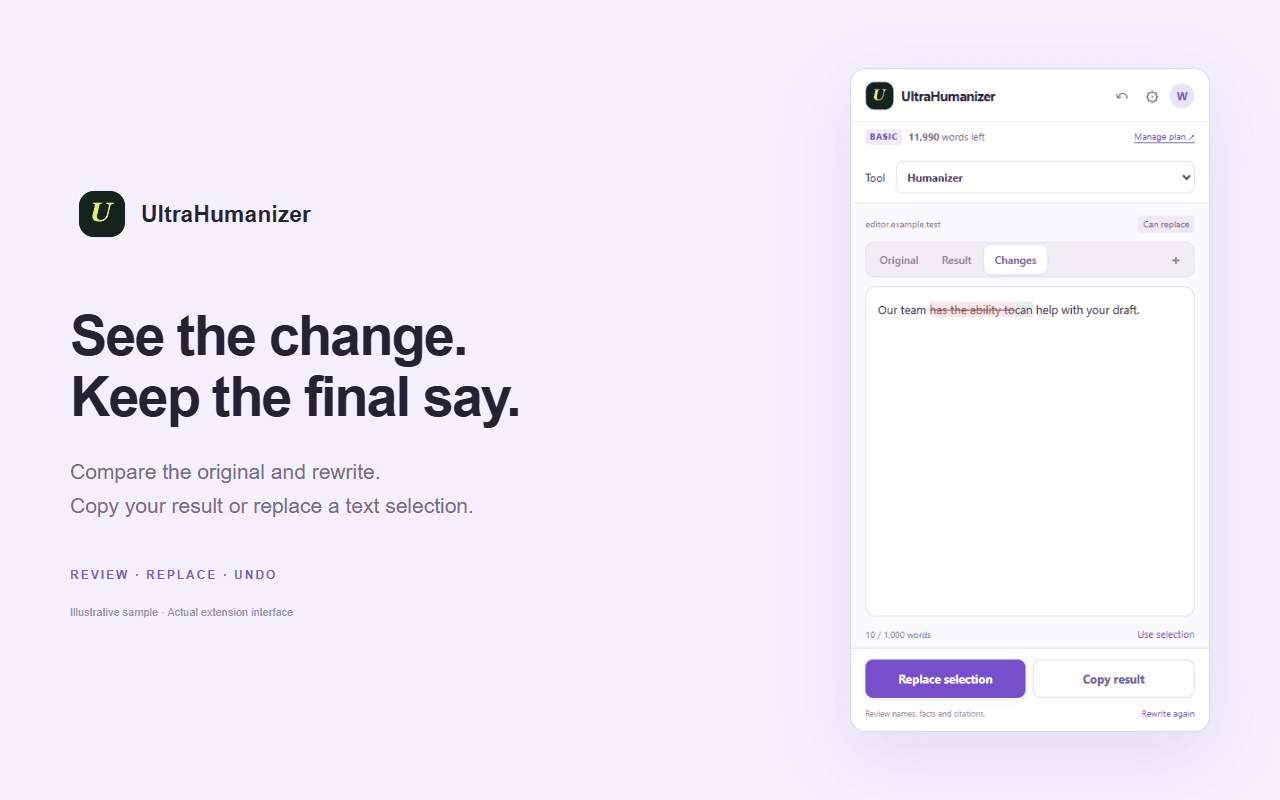
The connected account supplies the word balance and tool allowances shown in the panel. Website and extension usage share those allowances. API credits do not add words to your website plan.
Check current plans →Start an action yourself and review the selected text. Optional page-selection features may request additional site access. You can disconnect the account from the panel.
Read extension privacy and permissions →Connect your existing UltraHumanizer account. The extension uses your website plan and its applicable word and tool allowances. Installing the extension does not add an extra allowance. Developer API credits are a separate product.
No. Browser settings pages, extension stores and other protected pages cannot be read. Some embedded editors do not expose a replaceable selection. Paste text into the panel and copy the result when selection or replacement is unavailable.
No. Review the text in the panel before choosing Humanize or another online processing action. Online processing sends the submitted text to UltraHumanizer and its processing provider. Local tools have different behavior; the privacy page explains each category.
Replacement is available for supported editable selections. Review the result first, then use Replace when offered. Ordinary page text is not an editable document; use Copy instead. Undo is available for supported replacement operations.
Complete sign-in and authorization in the UltraHumanizer page that opens, then return to the panel. Check that the account and allowance appear. If they do not, retry Connect and contact support with the error message, without including private text.